01
Make still photos feel intentional
Turn the property gallery into a paced sequence with motion, transitions, an opening, and an agent-led ending—not a loose stack of images.

Build a branded video from the photos and property details already in your listing. Shape the scenes, motion, music, and ending, then export it in the format your campaign needs.
The photos, property message, branding, and agent-led next step work as one continuous video.
ListingAI gives the gallery structure, movement, and a clear ending while keeping you in control of what the property says.
Turn the property gallery into a paced sequence with motion, transitions, an opening, and an agent-led ending—not a loose stack of images.
Start from the listing photos, facts, address, and selected brand you already added, then review every scene before you export.
Choose 16:9, 9:16, 4:5, or 1:1 so the finished composition fits a website, presentation, feed, or full-screen social placement.
Work at the level that matters for a property campaign: which images appear, how they move, what viewers read, and how the video returns the attention to you.
Choose the listing photos that carry the story, change their order, and leave out the ones that do not earn a moment in the tour.
Use clean Standard Motion throughout, add Cinematic AI Motion to standout scenes, or mix both styles in one video.
Adjust pacing, transitions, on-screen property details, colors, fonts, and the opening and end scenes before creating the final cut.
Preview individual royalty-free tracks, choose one that suits the property, use your Personal Music Library, or keep the video silent.
Use Standard Motion for clean property storytelling, add Cinematic AI Motion to the scenes worth emphasizing, then choose a royalty-free soundtrack for the finished video.
Compare included Cinematic Scene CreditsClean static, pan, zoom, and sweep scenes for polished property storytelling.
No Cinematic Scene CreditsDimensional AI camera movement for standout scenes. Reuse an existing generated animation without another credit.
Mix with Standard MotionPreview individual royalty-free tracks, choose one from the library or your own uploads, or keep the video silent.
Preview tracks before choosingBuild a standalone property video when you want control over every scene and output. Use a Campaign Reel when the video should arrive beside coordinated Post and Story creative for the same launch.
Choose the ratio, motion, sequence, music, details, and end scene, then export the finished property tour.
Review a social-first tour beside the Post and Story, then choose what moves into Social Planner for publishing.
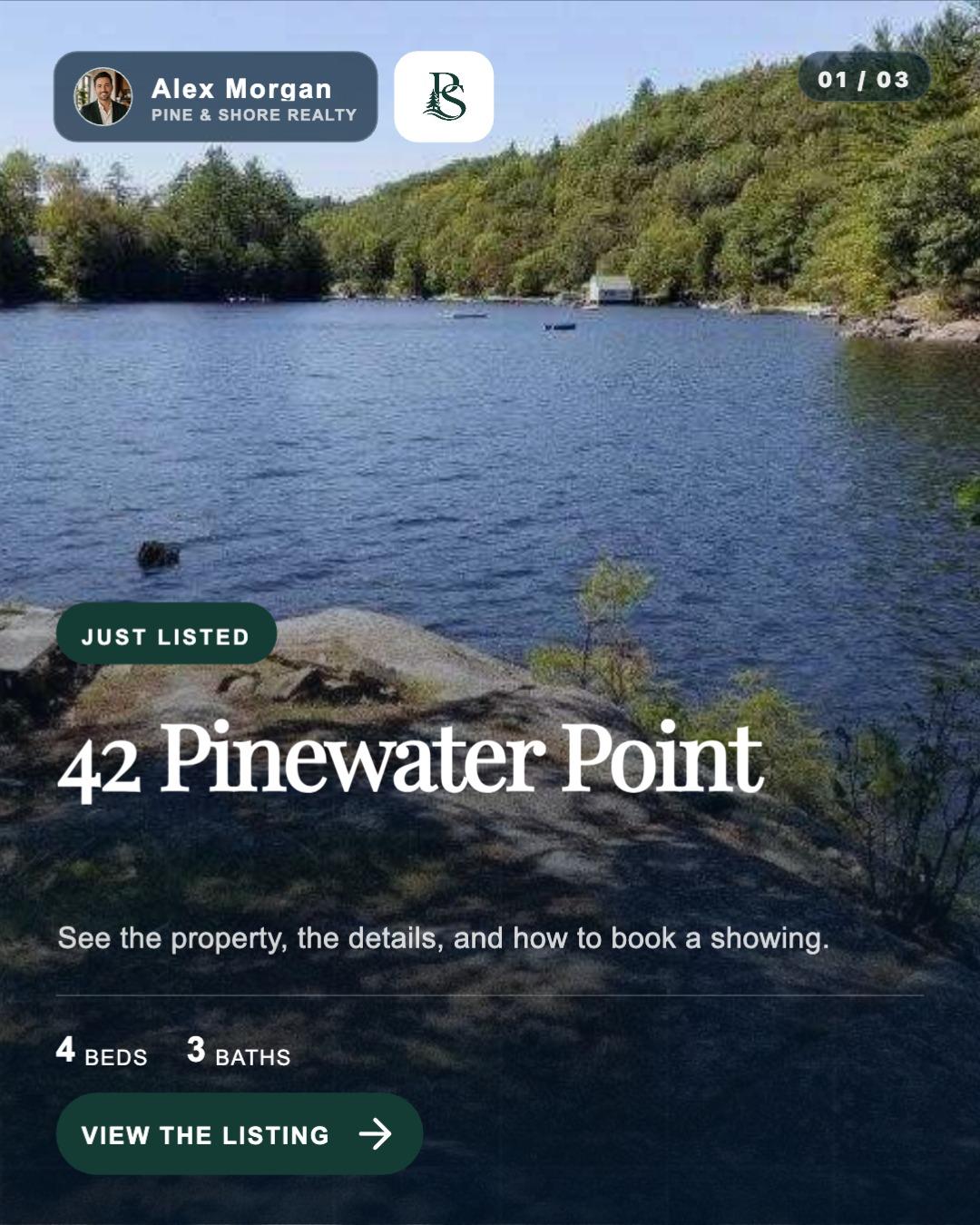
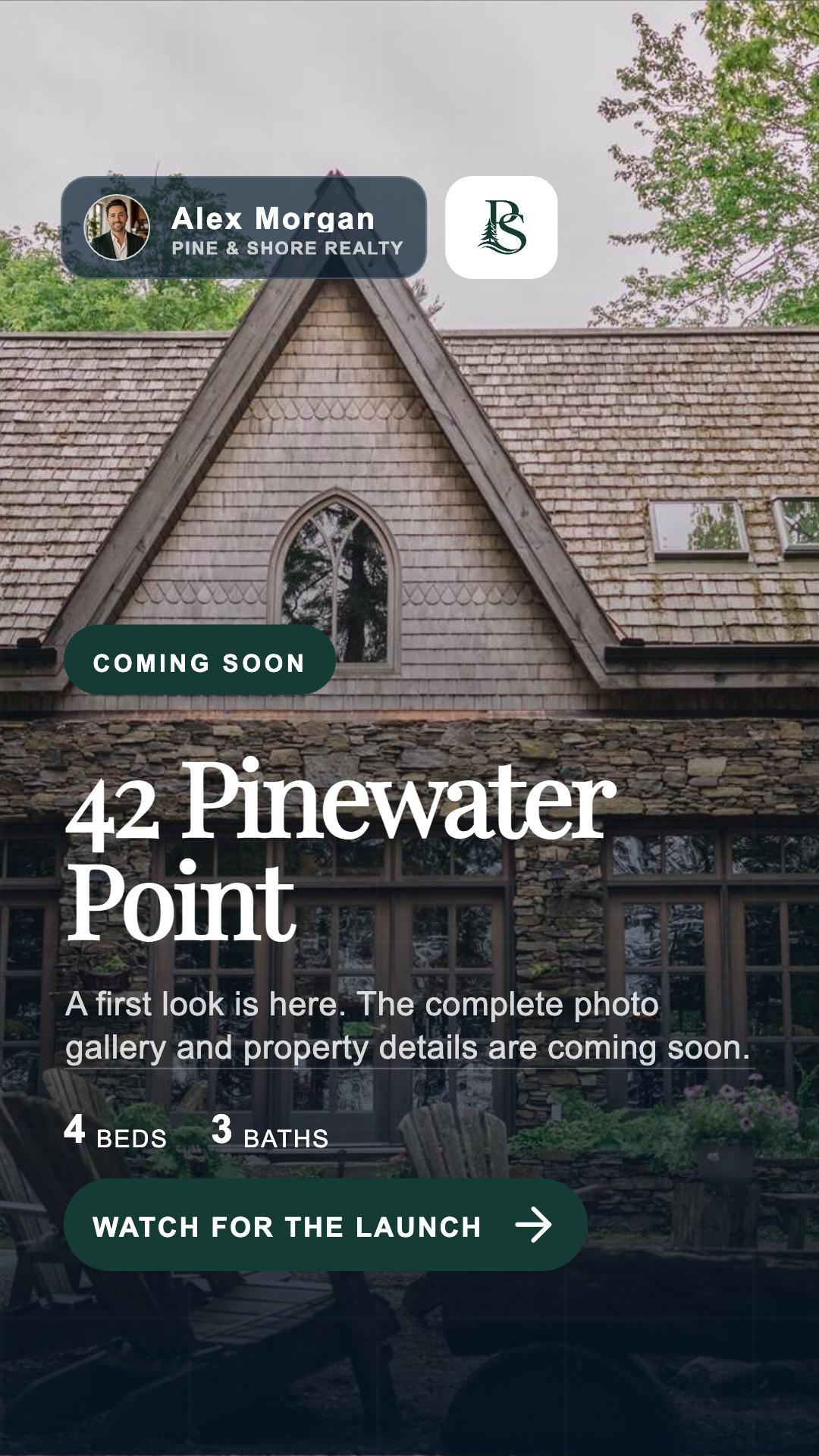
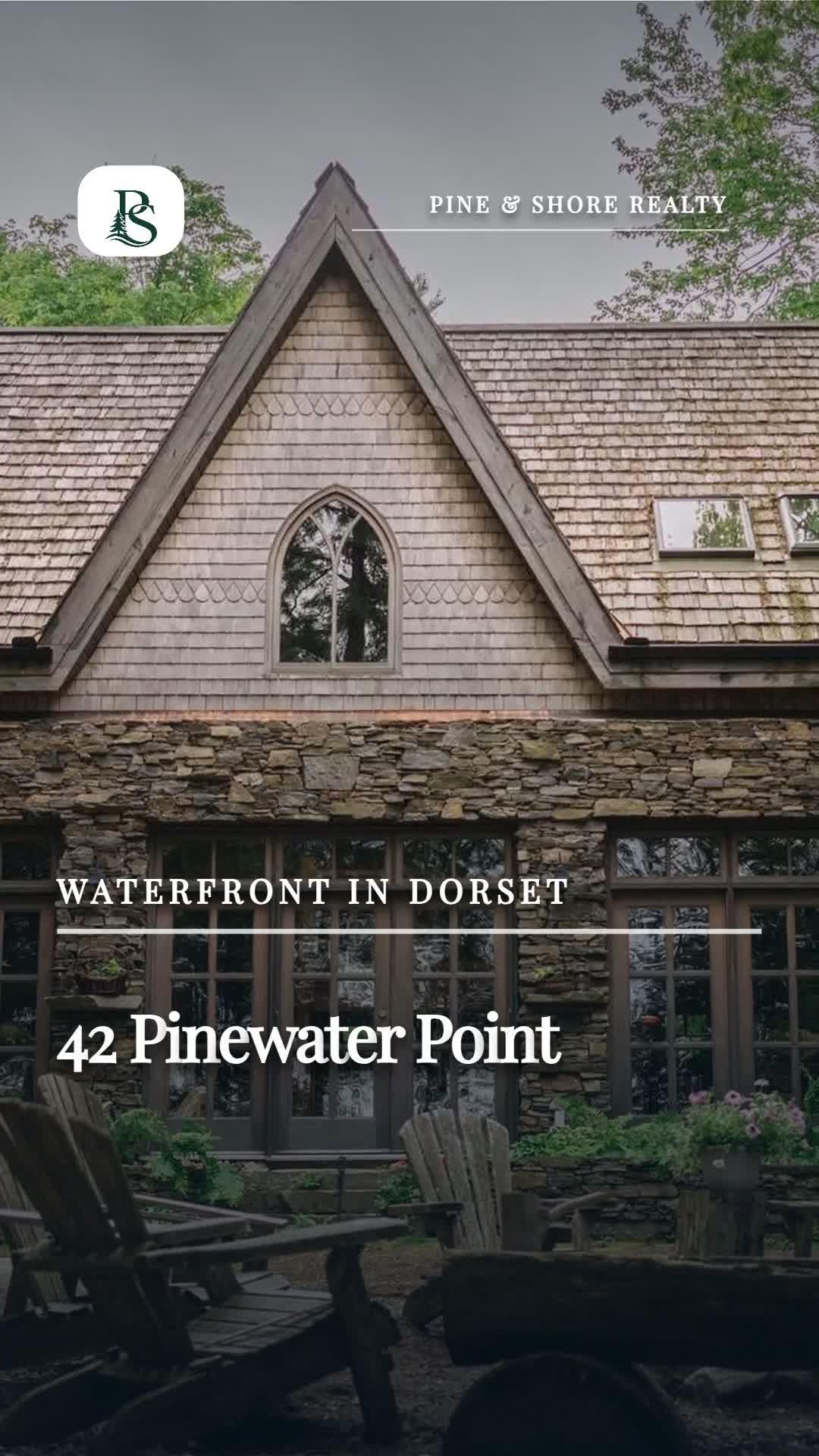
Choose the aspect ratio for the destination instead of expecting one landscape edit to work everywhere.
Listing websites, presentations, and wide video placements.
Full-screen viewing and social-first property tours.
Taller feed placements with more room for the property.
A balanced, compact format for flexible sharing.
The video stays connected to the listing instead of becoming another project that asks you to enter the same property twice.
Start with your listingStart with the property record that already holds the photos, facts, and selected brand profile.
Select and order scenes, choose an aspect ratio, and decide how each photo should move.
Confirm the property text, visual style, music, pacing, and agent or brokerage end scene.
Generate the finished video in a few minutes, review it, then download or use it with the rest of the listing campaign.
Let the video create interest, then give buyers the complete gallery, facts, location, and contact path on one branded property page.
Start with photos, choose how they move, and keep the finished tour connected to the rest of the property campaign.
A Listing Video is the configurable property tour you build in the video workspace: you choose the scenes, aspect ratio, motion, music, property details, and ending. A Campaign Reel is a social-first video placed beside the Post and Story prepared for the same listing. They can use the same property media, but they serve different parts of the campaign.
No. You can build the complete video from listing photos. Select the images, arrange the sequence, then use Standard Motion or Cinematic AI Motion to bring individual scenes to life.
Standard Motion is unlimited on every plan. Cinematic AI Motion uses one Cinematic Scene Credit the first time you generate dimensional AI movement for a new scene. You can reuse that generated animation without another credit and mix Standard and Cinematic scenes in the same finished video.
ListingAI supports 16:9 landscape, 9:16 vertical, 4:5 portrait, and 1:1 square video. Choose the ratio that matches where you plan to use the finished property tour.
Yes. Choose the ListingAI video you want to show on the individual property website so buyers can move from the campaign into the complete listing story.
Choose the scenes, shape the motion, and create the finished listing video.
© 2026 MappedBy Inc. All Rights Reserved