

A week of listing content starts with the listing itself.
ListingAI turns the property details, photos and selected brand into a coordinated launch campaign. You can move directly to review and scheduling, with deeper creative controls available whenever a listing deserves a custom touch.
Open Social to find buyer-facing ideas built from the listing and arranged in a useful sequence.
Add launch, feature, tour, showing and later update content while keeping one coordinated visual identity.
The campaign is intentionally useful before you touch a control. Editing is an option, not a prerequisite.
One real listing, delivered three different ways.
This 42 Pinewater Point campaign combines the listing photos, property facts and Alex Morgan's Pine & Shore Realty brand into finished creative for the feed, Stories and Reels.
42 Pinewater Point
The same $1,349,000 waterfront listing becomes a swipeable launch Post, a full-screen Story and a short Reel with an agent call to action.
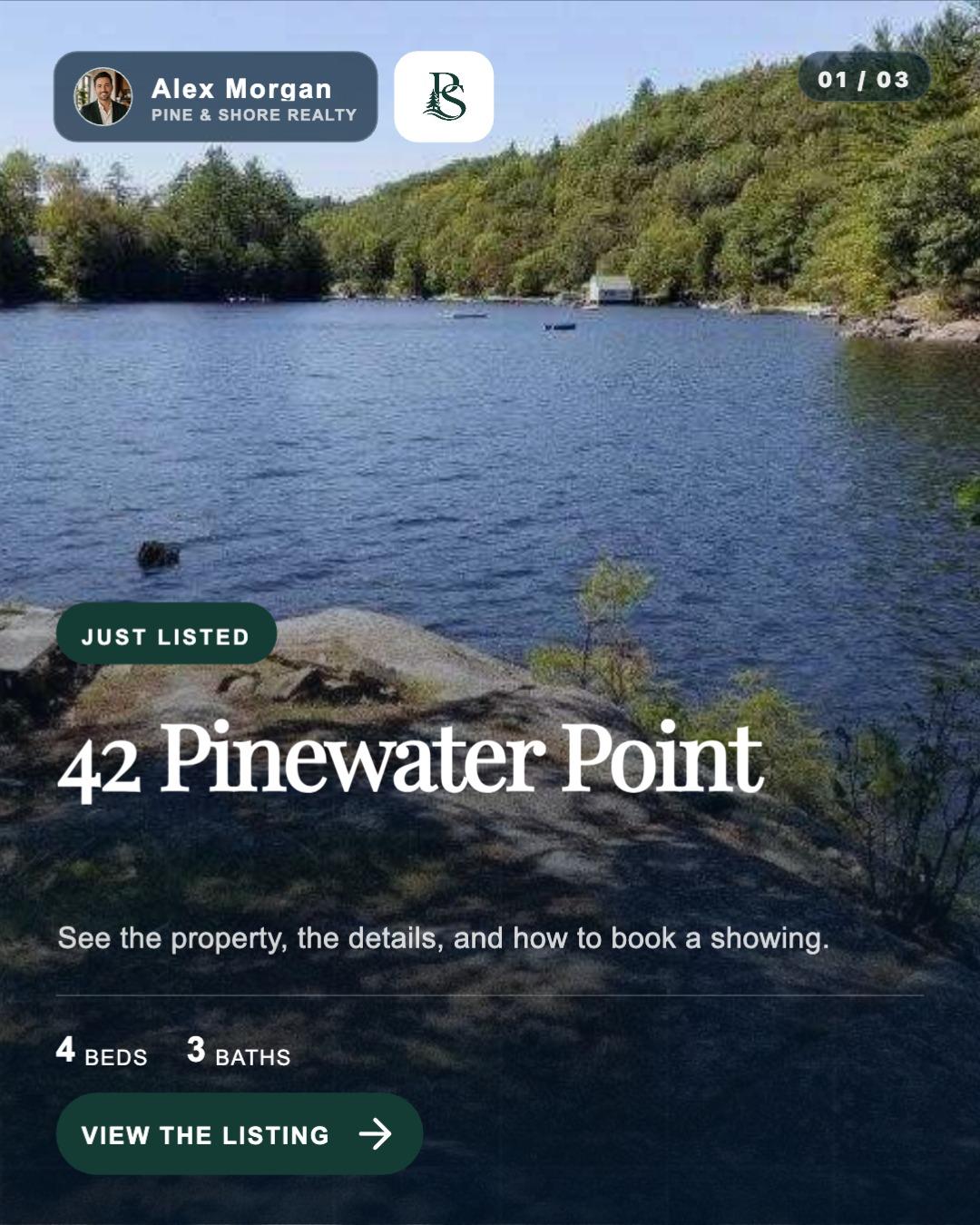

A launch post that earns the swipe
The cover establishes the property and price. The next slide changes the visual and message instead of repeating the same “Just listed” graphic.
- Listing facts are formatted for readability
- Branding and pagination stay consistent
- The full listing-aware caption publishes with the Post
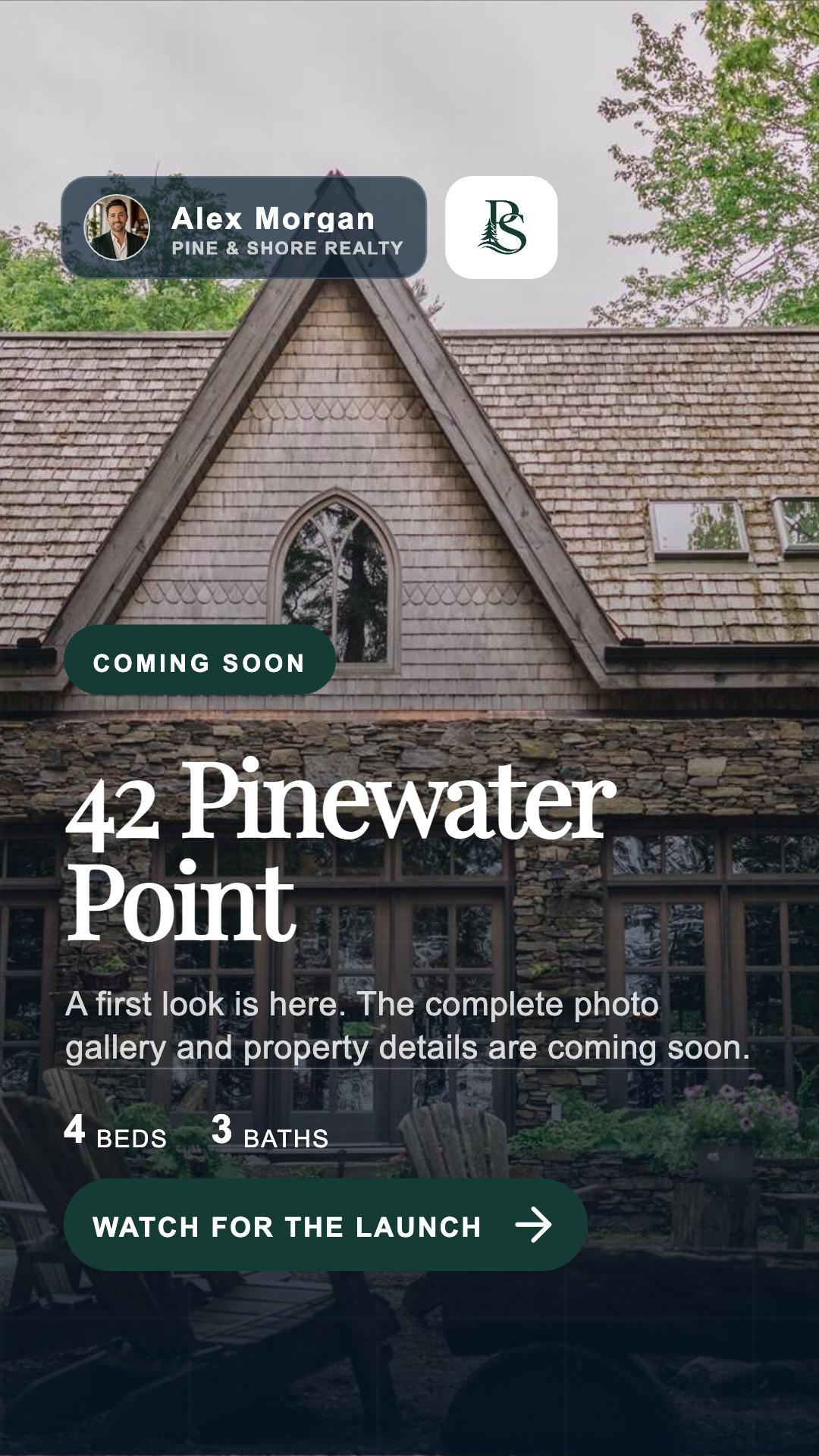
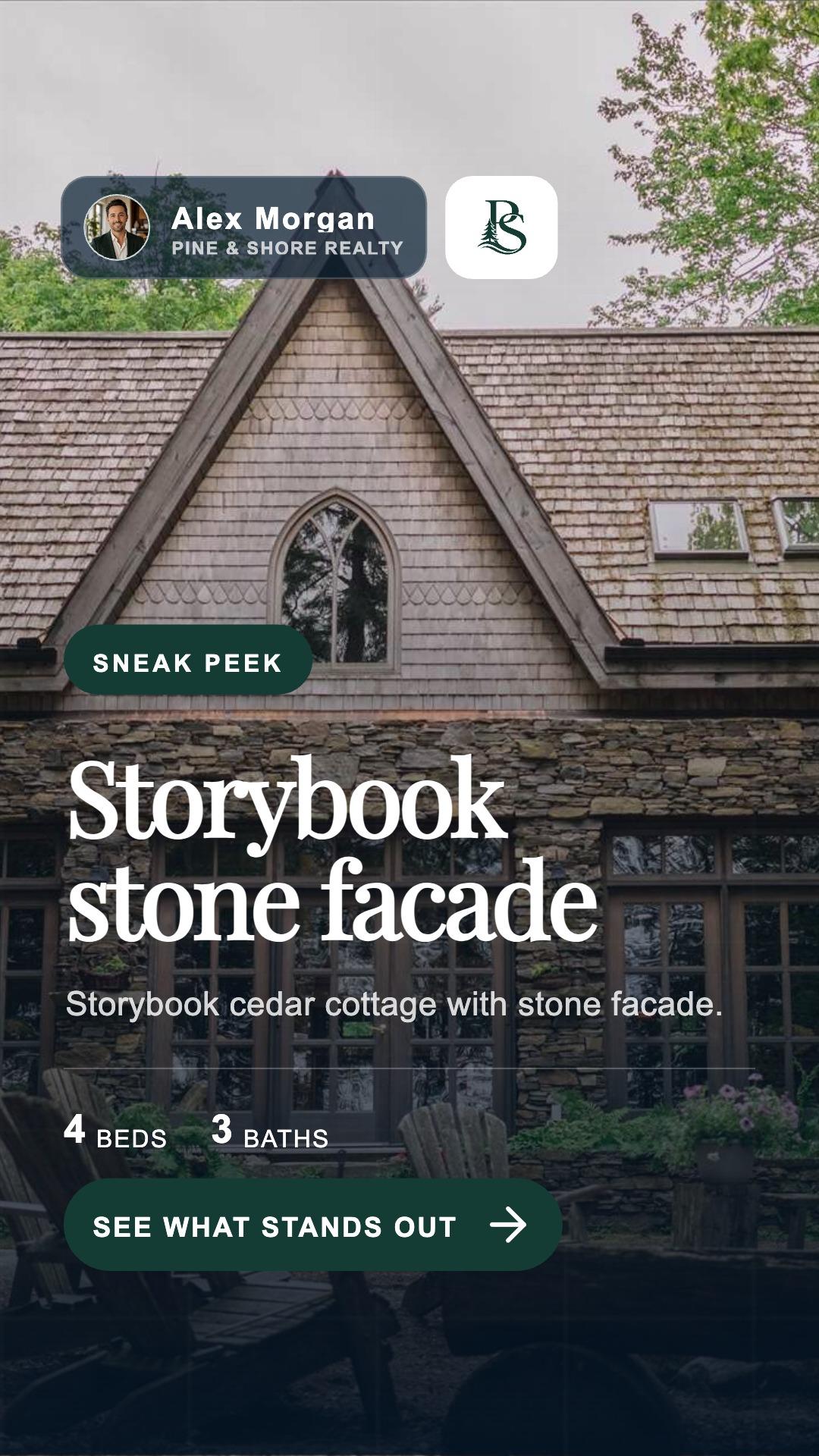
A full-screen sequence that keeps attention
Large type, concise messaging and spacious compositions make each card easy to absorb at a glance while the agent's brand connects the complete sequence.
- One memorable idea on each card
- Designed around Instagram and Facebook viewing controls
- Cards can be reordered, duplicated or removed
A polished tour built for discovery
Property scenes, graceful motion, music and concise feature callouts create a quick visual tour, followed by a dedicated agent scene that makes the next step clear.
- Standard motion or reusable Cinematic animation
- Editable scene, overlay and audio timing
- A finished video ready for Social Planner
Explore the finished 42 Pinewater Point campaign across its Post, Story and Reel formats.
Every format is designed for the way people experience it.
Swipeable Posts, full-screen Stories and motion-first Reels each receive the dimensions, pacing and creative tools that help the listing feel native to the destination.
A feed post people can swipe
Use a strong cover, then add supporting slides for details, lifestyle, or a private-showing invitation. The full caption sits beneath the post.
4:5 or square · slides · published captionA short, full-screen sequence
Each card carries its own concise message because Stories move quickly. Platform-safe spacing keeps important text away from account and reply controls.
9:16 · tap-through cards · on-screen copyA motion-first listing tour
Combine photo scenes and uploaded video clips, then trim, reorder, add timed text, keep original audio, and layer music from the ListingAI library.
Clips · timing · overlays · original audio + musicSimple on the surface. Powerful underneath.
You can publish the prepared content with very little work—or open the controls when a listing deserves something more specific.
See the property, the details, and how to book a showing.
3 BEDS · 2 BATHSAddress, details, photos, description, highlights, status, and the listing’s selected brand feed the first draft.
Type into the creative, move unlocked layers, change fonts and colors, add overlays, and drag photos or videos into the right place.
Open the full-screen caption editor to change voice, length, emojis, formatting, and listing-aware AI revisions.
Trim and reorder scenes, use photos as motion clips, time multiple text layers, and mix original audio with one library track at a time.
The editor creates it. Social Planner publishes it.
Nothing goes live simply because you opened or edited a campaign. When the content is ready, choose one piece or a group and continue to Social Planner for the connected account and timing.
Choose this Post, Story, or Reel—or select several ready campaign pieces.
Start around the listing launch date or prepare unscheduled drafts for later.
Select the Facebook or Instagram destination, review the preview, and confirm.
Every publish action is confirmed in Social Planner, with the destination, date, time and delivery status shown for each selected account.
Four steps from listing to scheduled content.
- 1Open Social on a listing
ListingAI uses the property details, photos, selected branding, and existing social copy as its starting material.
- 2Review the campaign sequence
Start with Coming Soon, Just Listed, feature-led content, a tour, and a showing invitation. Event and status updates stay separate until their facts are known.
- 3Change only what needs changing
Replace media, type directly into the creative, revise the full caption, switch the brand, or open the deeper design and Reel controls.
- 4Review and schedule
Choose one piece or several. Social Planner is where you select the connected Facebook or Instagram account, timing, and final publishing confirmation.
It is still available while you get comfortable.
Classic and Listing Campaigns remain separate projects. You can open the Classic single-post editor from the top of the new experience, and existing Classic work is never silently rewritten. You can explicitly bring a finished Classic Post or Story into V2 when it is useful.
See the complete exported campaign example →Open a listing and let ListingAI build the starting point.
Listing Campaigns brings fast first drafts and detailed creative control into one workflow. Your feedback will help us keep making it faster, clearer and more useful.