
Listing performance reports: common questions and guides
Find the question you need below. Each answer includes the exact steps for adding, checking, or correcting a monitored listing.
Can I set up performance tracking before my listing goes live?
Yes. Create and save the property now. Monitoring begins after the MLS sends the listing to public real estate portals and ListingAI finds a matching page.
- Choose Create New Listing and add the property address and details as usual.
- Save the listing. ListingAI schedules its first portal search about 20 minutes later. It is normal for Listing Stats to have no pages while the property is still private or coming soon.
- If no active page is available, ListingAI normally searches again about 6 hours later and once more 24 hours after that, covering roughly 30 hours from the first search.
- After the listing goes live on the MLS, allow time for public portals such as Zillow or Realtor.com to publish it.
- Return to Listing Stats. Opening the report can start a fresh recovery check once per day, and you can select Find missing listing pages whenever you want to search immediately.
How do I monitor a listing I've already created in ListingAI?
Open the listing you already created. You do not need to make a duplicate property or complete a separate monitoring form.
- Open Listings and choose the property you want to monitor.
- Select Listing Stats from the listing's tool tabs.
- If no portal pages are connected yet, ListingAI starts looking for them automatically. Collection continues in the background afterward.
- Once at least one current page is connected, the listing can appear in future reports and scheduled email roundups.

Don't see your stats yet?
Check whether ListingAI found the live property pages and whether those portals publish the metrics you expect.
- If no listing pages are connected, select Find missing listing pages. You can also manually add a public portal URL you already know.
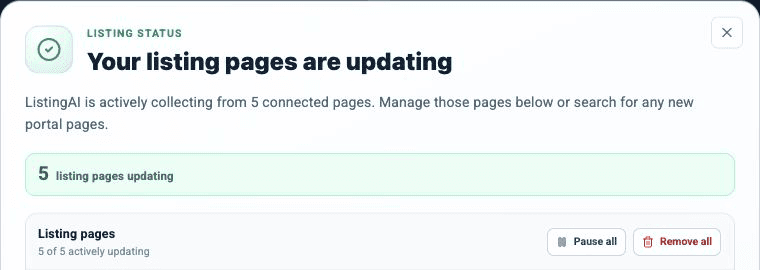
- Select Manage pages, then open each portal link and confirm the address, unit number, listing status, price, and photos match your property.
- Confirm that the correct page is active rather than paused or stopped. Resume it if appropriate.
- If the page was just connected, allow the first collection to finish and refresh the report again.
- If the page is correct but a value says Not reported, that portal does not currently publish that metric. ListingAI does not count an unavailable value as zero.
My listing is already live on the MLS. How do I start tracking its performance?
Create the property in ListingAI and open Listing Stats. Because it is already public, ListingAI can begin looking for its portal pages immediately.
- Choose Create New Listing and enter the property address and listing details.
- Save the listing, then open its Listing Stats tab.
- ListingAI begins discovering supported portal pages. If a page is not found, choose Find missing listing pages to run the search again.
- Open Manage pages and verify that each connected page belongs to the correct property.
A portal link looks wrong. How do I correct it?
Remove the incorrect source, then let ListingAI rediscover the property or add the correct public URL yourself.
- Open Manage pages and use the external-link icon to confirm which portal URL is wrong.
- Remove the incorrect page using its trash icon. Existing readings from other correct portals are retained.
- Select Find missing listing pages to search that portal again.
- If you already know the correct URL, select Manually add a listing page, paste the full public property URL, and choose Track source.
- If the property was taken down and listed again, choose This listing was re-listed so ListingAI can connect the new listing episode without mixing its readings with the old one.

