
Choose exactly which furniture goes into your virtual staging
 Andrew McGrath
One of the most common requests we've heard from agents using our virtual staging is: "Can I choose which furniture goes into the room?" Today, the answer is yes.
With our new Staging Items Generator and Reference Items feature, you now have full control over the furnishings that appear in your staged photos. Generate a personal library of furniture pieces, then select exactly which items the AI should use when staging a room.
The new Staging Items Generator lets you create AI-generated furniture and furnishing items that get saved to your personal asset library. Each item is generated as a 4-view product sheet showing front, 3/4 angle, side, and detail views.

The Staging Items Generator
Chair, Bed, Table, Sofa, Desk, Dining Set, Coffee Table, Nightstand, Bookshelf, Dresser, Lamp, Rug, Ottoman, Accent Chair — or add your own
Modern, Traditional, Mid-Century, Scandinavian, Industrial, and more
Wood, Metal, Fabric, Leather, Marble, Glass, Velvet, Linen, Rattan, Wicker, Ceramic, Stone, Acrylic — or add your own
Add any colors you want — black, walnut, cream, navy, whatever fits the property
Each generated item comes as a 4-view product sheet showing front, 3/4 angle, side, and detail views. Everything is saved to your Asset Library for reuse across listings.
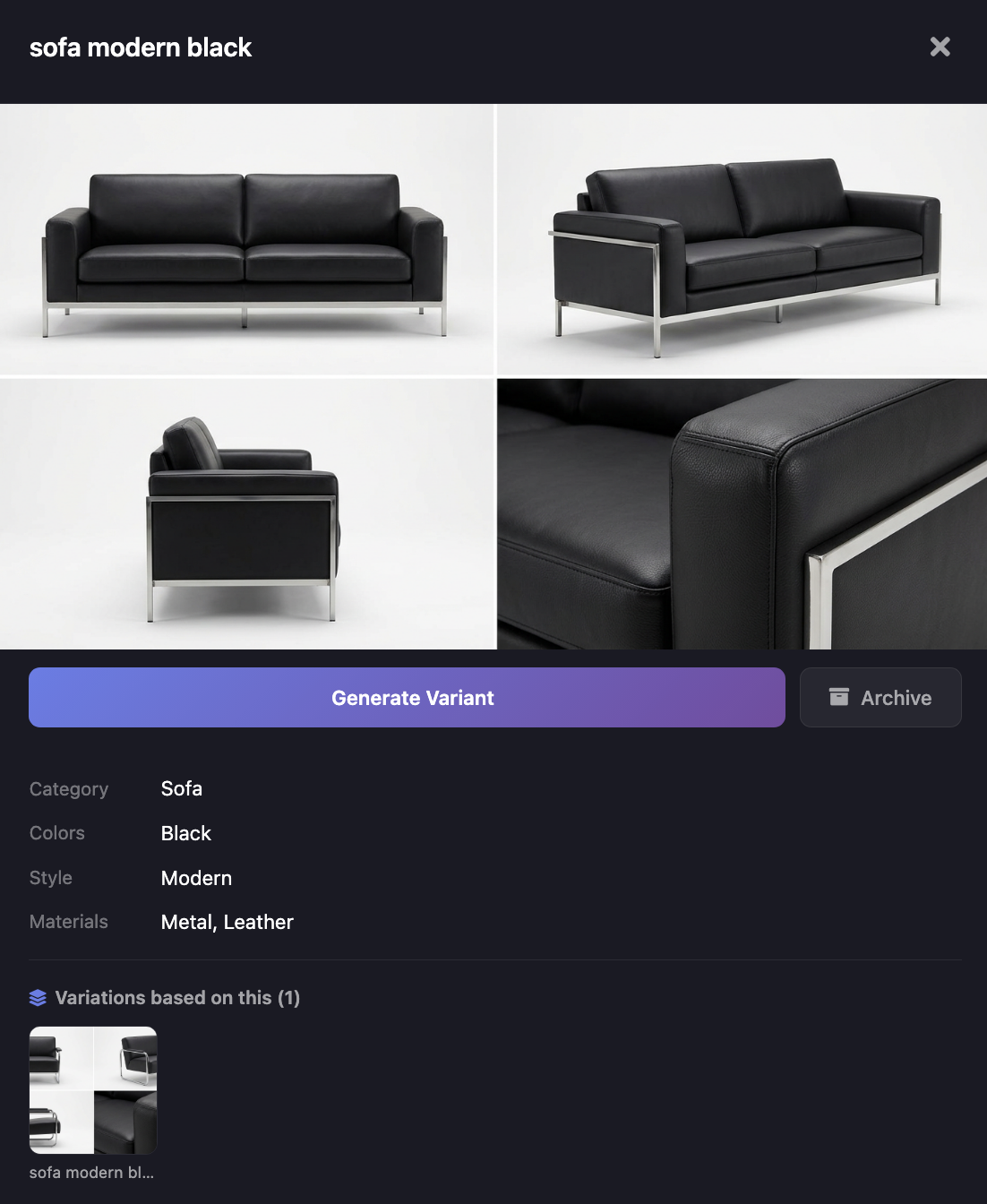


Love a piece but want a different color or material? Use the "Generate Variant" button on any item to create similar pieces based on it. Great for building a cohesive set.
You don't have to start from scratch. There are a few ways to build up your furnishings library:
Use the Staging Items Generator to create exactly the furniture you have in mind. Choose category, style, materials, and colors.
Browse items created by other agents in the Global Library. Find something you like, add it to your collection, and use it right away.
Found a piece you almost love? Use "Generate Variant" to create variations with different colors or materials until it's exactly right.
Click the heart icon next to any item or over its image to "like" it. Liked items rank higher in your search results so they're easier to find. Your likes also help us understand what furniture styles agents prefer, so we can improve the Global Library over time.
Once you've built up your furniture library, head to the Image Editor to stage a room. You'll find a new Reference Items section in the staging panel. Click + Add to pick items from your library — you can add up to 10 reference items per staging.
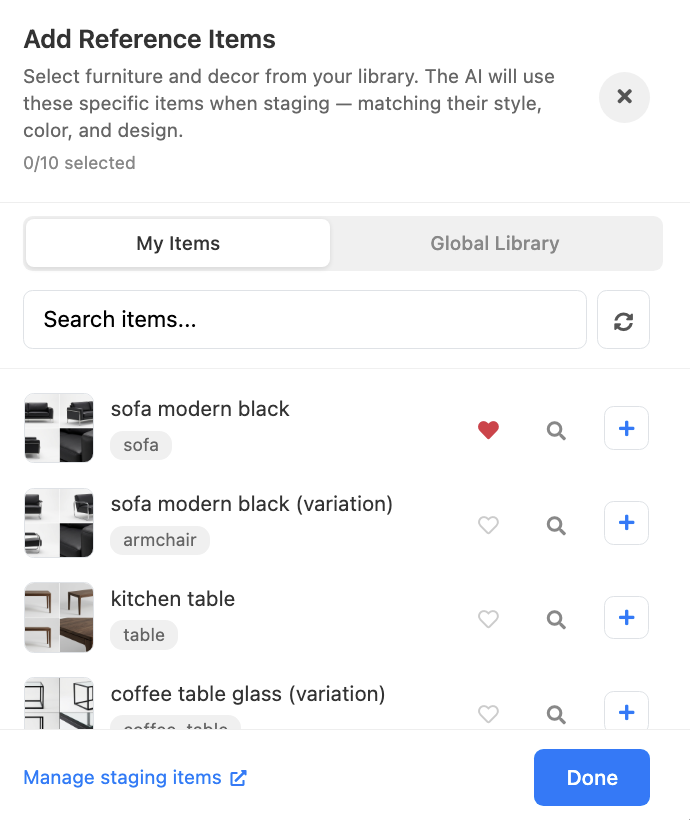
The selection tool — browse My Items or the Global Library, search, and add up to 10 items
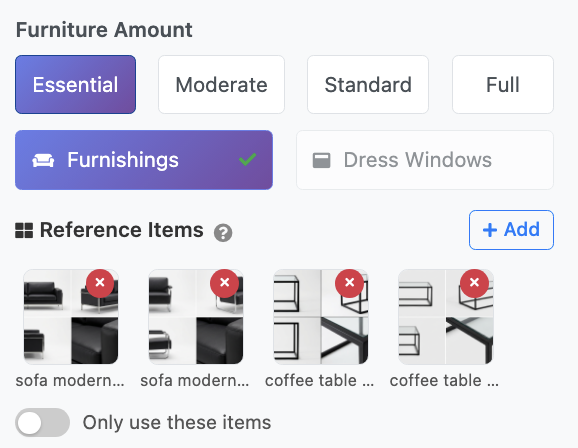
Selected items appear in the Reference Items panel with the "Only use these items" toggle
Turn on "Only use these items" and the AI will strictly use the furniture you've selected — nothing else. You get exactly what you picked, no surprises.
Leave the toggle off and the AI will use your items as a starting point while also adding complementary pieces it thinks fit well with the room and your selections.
Here's a side-by-side of the full staging workflow. The black modern sofas and glass coffee tables we generated were used as reference items, and the AI placed them naturally into the living room.
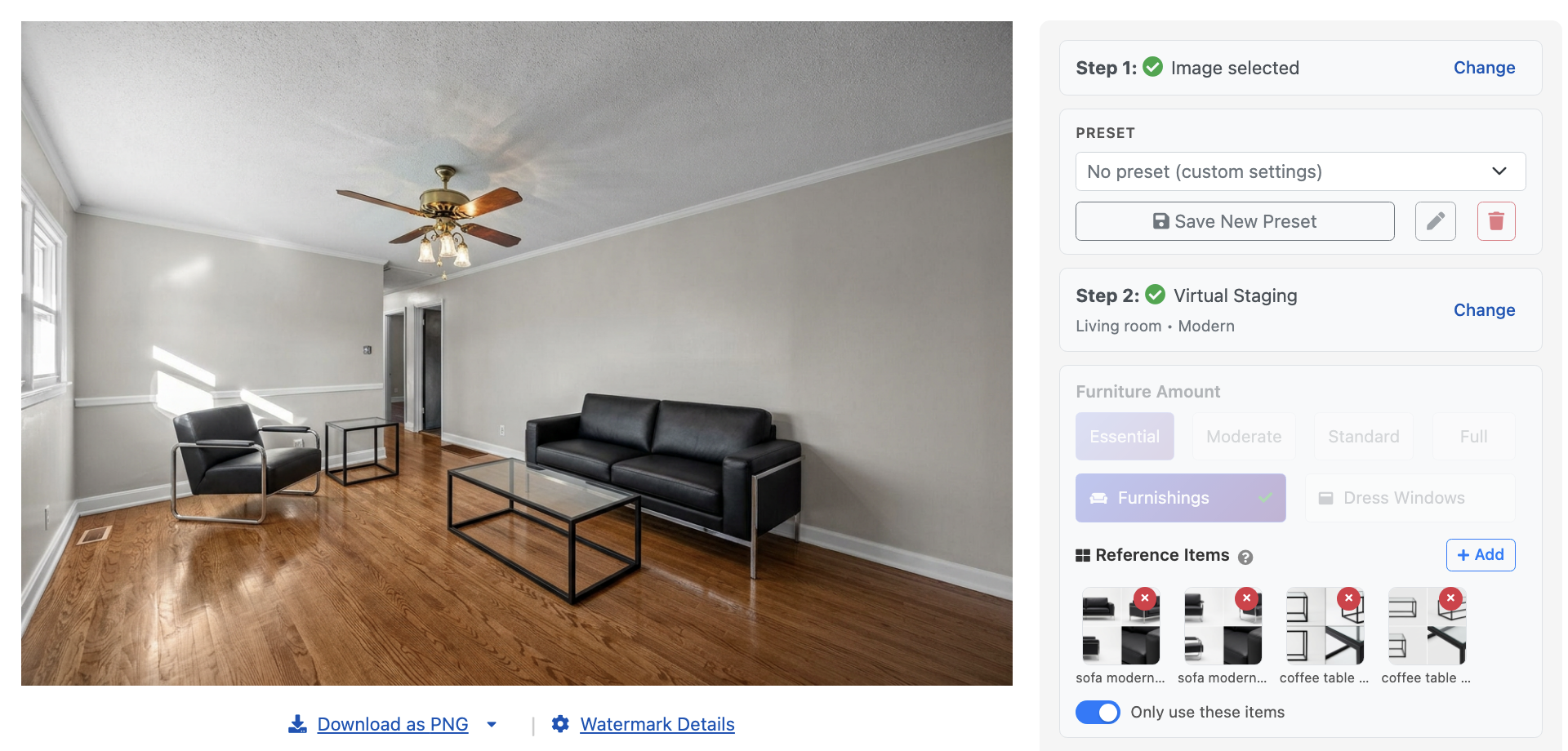
The finished staging result using reference items — furniture matches exactly what was selected
Your reference items are saved to your library, so you can reuse the same furniture selections across photos. They help you aim for a cohesive style across the living room, bedroom and dining room in a listing.
For different views of the same room, try multi-angle staging. Upload your photos, accept the first look, then carry that design into the other views.
Already staged a photo you love? Open its accepted result and choose Add to a room, then create a new room or choose an existing one.
Professional, Expert or an active 30-day Professional pass · Precision Fast or Pro. Review each view before accepting; details can vary.
Go to the Staging Items Generator and create the furniture you want. Pick your category, style, materials, and colors.
Upload a room photo and select Virtual Staging. You'll see the new Reference Items section in the staging panel.
Add your items as references, toggle "Only use these items" if you want, and generate. The AI will use your furniture.
2 credits per furniture item • Reference Items included in staging
Try It NowIf you need help with the Staging Items Generator or Reference Items, I'd love to hear from you.
andrew@listingai.co(647) 225-4900
— Andrew McGrath, Founder
© 2026 MappedBy Inc. All Rights Reserved